
I have a problem. Not a big one, mind, but one all the same: I dislike the default formatting on Google Docs.
“Excuse me?” I hear you scream. “Do you really care enough about fonts and line spacing and text size on a simple word processor to write a whole damn article about it?”
And the answer to that, dear reader, is a resounding yes.
I use Google Docs constantly. Seven days a week, 12 hours a day, your boy is thriving in that word processor, hopping from document to document like the metaverse’s dullest Spiderman.
And here’s where I encounter the problem: whenever I open a new Google Doc, it’s formatted in a way I find neither pleasing, useful, or acceptable. You probably know the set up: Arial, a font size of 11, and a 1.15 line spacing. The words unsophisticated and crude barely come close to how this affronts me.
Yet, foolishly, I accepted this state of affairs for years.
Yeah, it was a hassle to manually change the default formatting each time I opened a new document, but it wasn’t quite enough of one for me to, you know, actually do anything about it. But then the day came when I’d had enough. I could no longer live that way — like an animal, a fool in a jingly bell hat, a vile little trollman living under a dilapidated bridge.
And since I changed Google Docs’ default formatting? Bliss. And I’d like to offer you a weighty slice of this wonderful feeling.
How to change the default formatting on Google Docs
It’s a simple process. First thing you need to do is write something with the formatting you want.
It can be a paragraph, a sentence, a couple of words, whatever, really. Just write it and make sure it’s formatted how you’d like. Choose your ideal font, text size, and line spacing in the menu bar.
Next up, select that text.
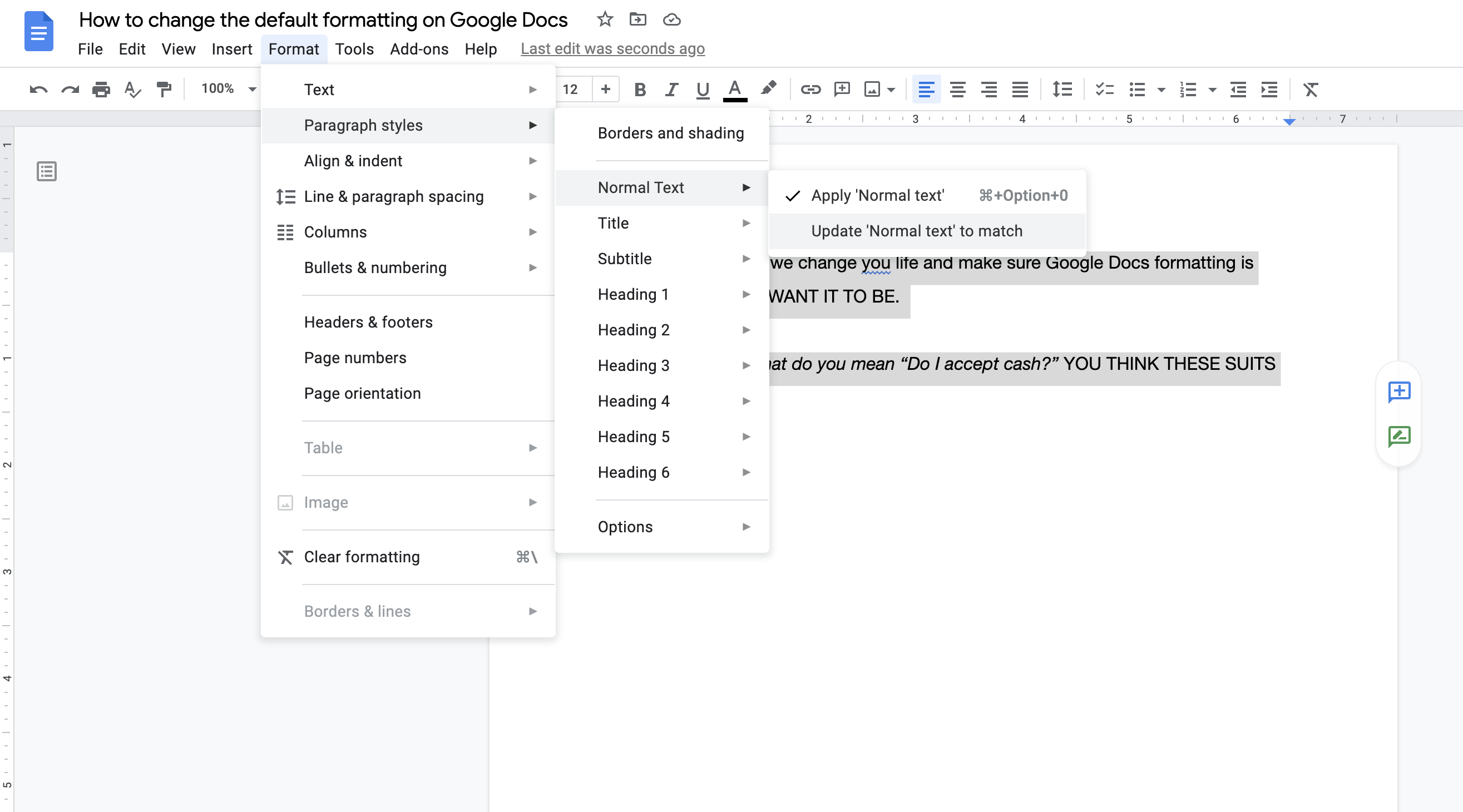
Then you want to go to the Format menu at the top of the screen (it should be just under your document’s title). From there, click on Paragraph styles and navigate to Normal text.
One you’re there, click Update ‘Normal text’ to match.
We’re almost done people, just one more thing.
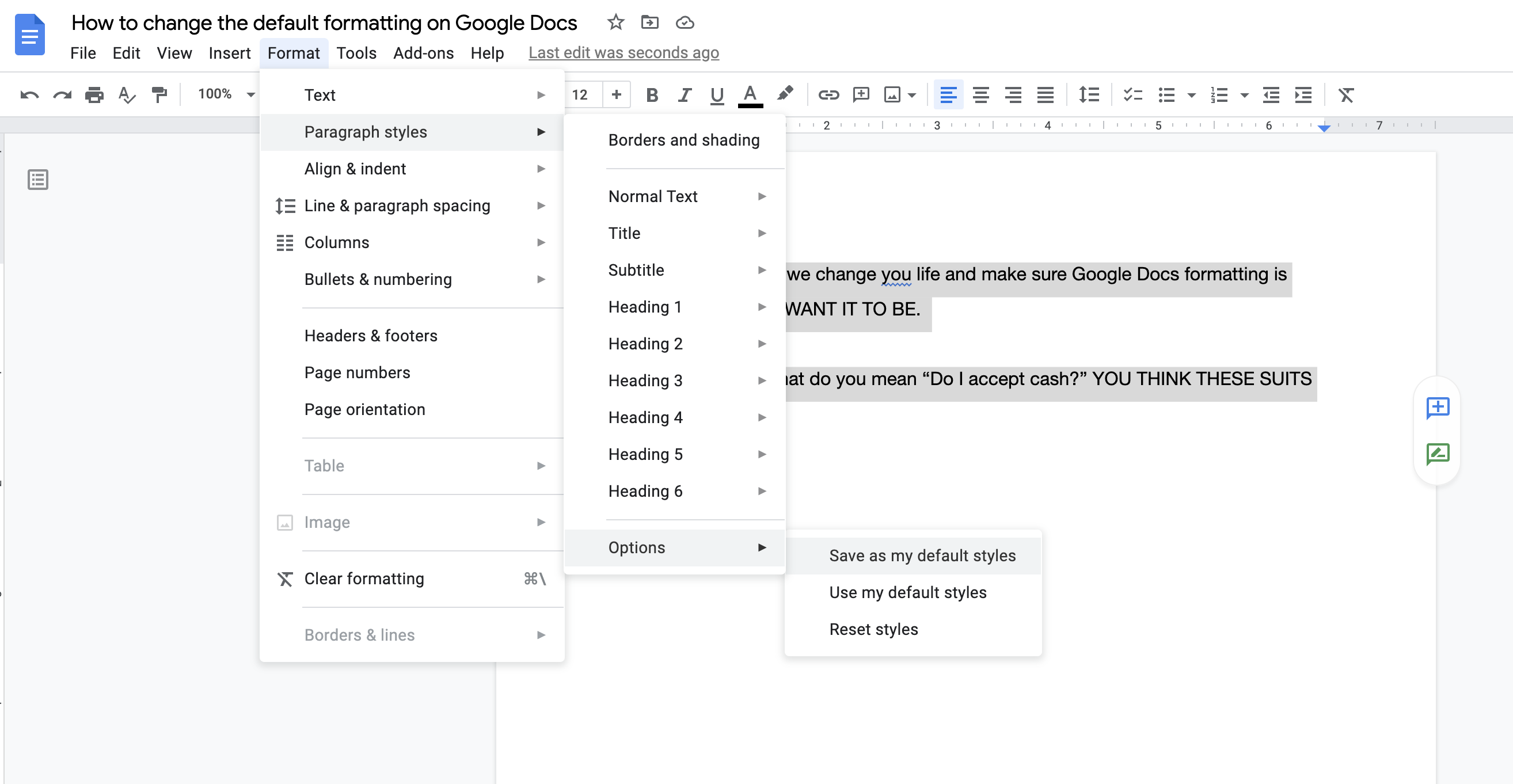
Go back to the Format menu. Then, navigate to Paragraph styles and through to Options.
Here, you should see something that says “Save as my default styles.”
Click it. CLICK IT SO DAMN HARD.
Now all that’s left to do is open a new Google Doc to see if it worked. And it did, right? And I bet you’re feeling pretty magnificent about life right now.
What’s that? The default Google Docs formatting I went for? Easy: Helvetica Neue, size 12, 1.5 line spacing.
The choice of kings — and overgrown manchildren who have too much time on their grubby hands.